
Film grain overlay generator
Make an original noise texture for a photo, poster or website. Download a separate PNG up to 4096 × 4096 pixels; you do not need to upload a photo.
Gray behind transparent grain is a preview background only · 1024×1024 px
Seamless mode wraps the noise across both edges for repeating backgrounds. The same seed and settings give the same texture.
CSS and SVG contain this same PNG texture, not a different noise effect. Web exports use 512 or 1024px tiles; PNG also supports 2048 and 4096px.
Processed on your device. No photo uploads.
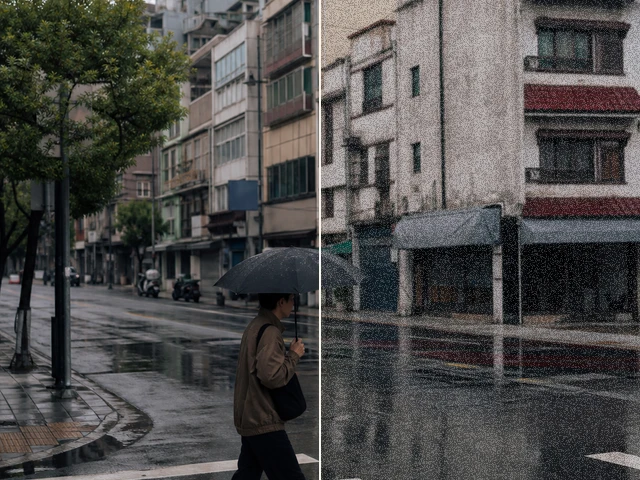
A texture file, separate from your photo
A grain overlay is a reusable image layer. Transparent mode creates dark and light flecks with variable alpha, so your photo remains visible underneath. Black and gray modes produce opaque textures for editors with blend modes. If you only want to finish one photo here, use the Film Grain photo tool instead.
Choose the texture at its final size
Start at 1024 pixels, Grain size 2 and Density 55. Even noise gives a more regular texture, Soft grain averages several independent noise samples for finer variation, and Speckled texture leaves more open areas between marks. Choose a final size before judging it: reducing a large texture can hide fine grain. Gray behind transparent areas is a preview background only.
Repeat a tile or reuse a seed
Seamless mode wraps the pattern horizontally and vertically; save its seed and settings to recreate it. Download a PNG up to 4096px, or choose CSS / SVG for a 512px or 1024px web tile. CSS defines a repeating .photo-grain background with an embedded PNG; SVG wraps the same pixels in an image element. Neither export is a new vector-noise algorithm, a physical film scan or animated footage.
How to use this tool
1. Set the background
Choose Transparent for an alpha PNG, or Black / Mid gray for an opaque texture.
2. Tune the pattern
Adjust grain size and density, choose a resolution and keep or reroll the seed.
3. Download and blend
Download the PNG. Place a transparent file above your photo at reduced opacity; try Screen for a black texture or Soft Light for gray.
Questions before you export
- Does the transparent PNG include the gray preview background?
- No. Gray is only behind the canvas in the preview. The downloaded transparent PNG contains varying alpha and no solid background.
- Can I add this grain directly to a photo here?
- This page generates the separate texture file. The Film Grain photo tool applies adjustable grain directly to a photo and exports the finished image.
- Is it a real 35mm scan or animated grain?
- No. The tool generates a still procedural PNG. It does not reproduce a specific film emulsion or export animated footage.