
Photo Date Stamp vs EXIF: Which Date Are You Changing?
A visible photo date and EXIF capture time do different jobs. Learn which one you need, how to avoid a misleading date, and how to add readable lettering.
 FilmFX
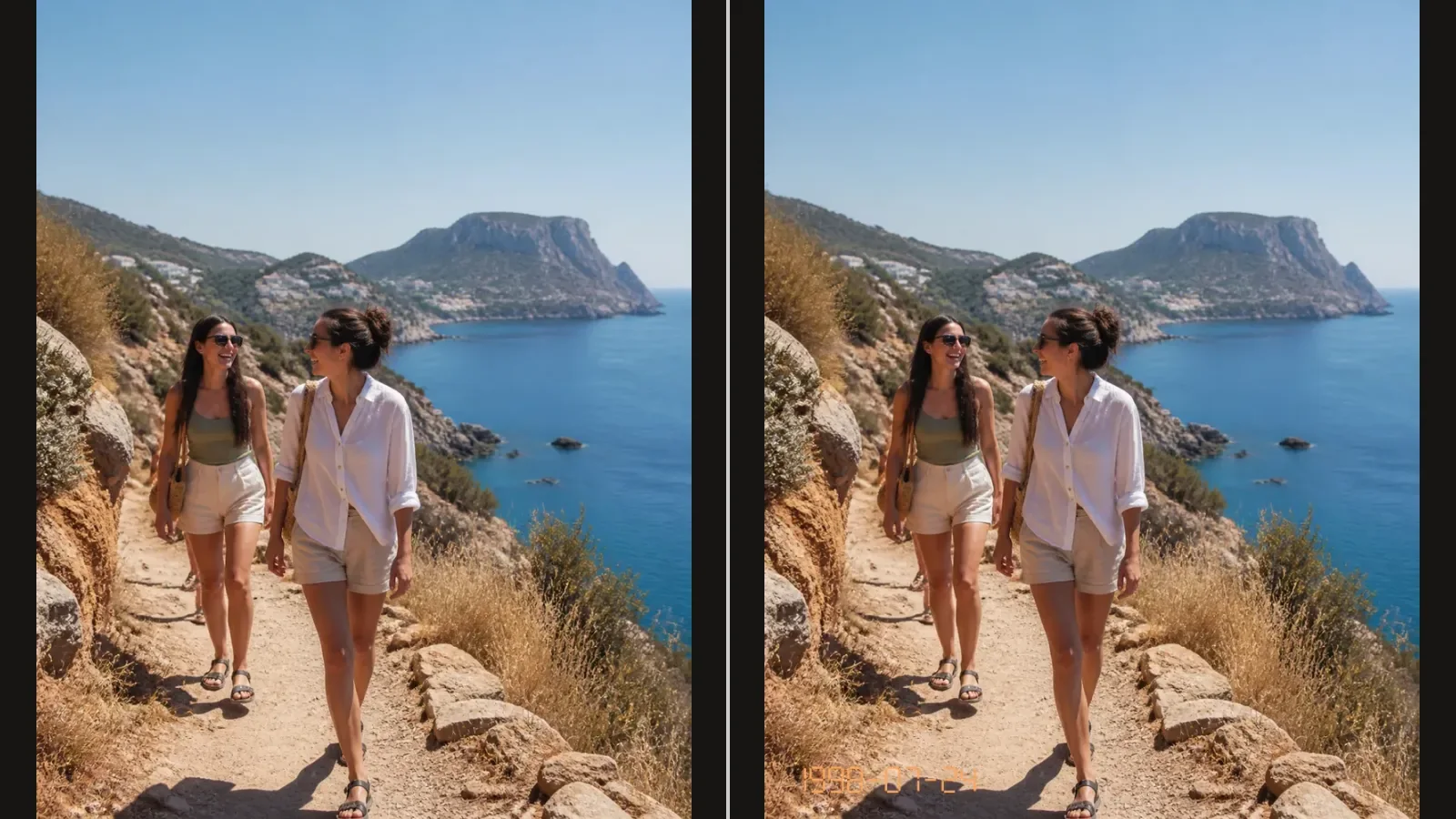
A photo date stamp is visible text on the picture. An EXIF capture date is information stored inside the file. Adding one does not automatically update the other.
If you want “1998-07-24” to appear in an album print, you need a visible stamp. If a photo library sorts a picture under the wrong year, you probably need to inspect its metadata instead. Those are different jobs.
Decide what needs to change
| Your goal | What to work on | | ------------------------------------------- | -------------------------------------------------------------- | | Print a date in a corner of a picture | A visible date stamp | | Correct the date used by a photo organizer | The relevant metadata field | | Give a snapshot an orange-digit film look | A decorative stamp, with a deliberately chosen date | | Establish when an image was really captured | Preserve the original and its context; added text is not proof |
EXIF can contain several date fields. ExifTool's documentation distinguishes DateTimeOriginal, CreateDate and ModifyDate. A file's modification time is another value again: copying or editing a file can change it without changing when the scene was photographed. Do not treat whichever date you see first as automatically correct.
Before stamping: where did the date come from?
For a recent photo, check the original in your photo library. For a scan of a family print, ask whether the date belongs to the event, the original photograph, or the later scan.
If all you know is the month or year, don't invent a precise day just because a form asks for one. Use a caption in an album or a text editor that supports partial dates. FilmFX's stamp currently requires a full calendar date.
For a deliberately retro edit, an invented date is a creative label. That is fine as a visual choice, but it should not be presented as a verified capture date.
Add a readable date to the picture
The photo date stamp tool provides a simple local workflow:
- Upload the original and enable Show date on photo. Today's date appears in the bottom-right corner. Check or change it: this default is not read from EXIF and is not a verified capture date.
- Keep Original selected if you don't want a color filter.
- Open More settings to choose YYYY-MM-DD, MM/DD/YYYY or DD/MM/YYYY. Year-month-day is a clearer choice when readers might disagree about whether 07/08 means July or August.
- Choose plain white text or orange film digits. Put them in a quiet corner, clear of faces and important details.
- Adjust size, compare, and download a copy.
The date remains selected when you upload another image. Check it each time, especially when working through photos from different days. Turn Show date on photo off to download a clean version.
This example keeps the original color and uses orange digits at 4%. The date is only there to show placement and lettering. Use your own confirmed date for a personal album.
Match the lettering to the job
Plain white is useful when legibility matters more than nostalgia. Orange seven-segment digits suggest the visual language of older compact cameras, but they do not recreate the hardware of a specific model.
For a snapshot edit, a disposable camera filter can supply color and texture separately. The 90s flash look is another option for a source photo that already has direct flash. Neither requires a date stamp.
Do the crop first. A date placed before the final crop can end up too close to an edge. FilmFX draws the stamp on the transformed image, so its corner placement follows the finished frame. Still, inspect the exported copy before printing.
What the download does—and does not—keep
The date becomes part of the JPG, PNG or WebP pixels. It is not a separate editable text layer. While your original is still open, you can disable the stamp and export again; after closing the editor, use your untouched original to start over.
FilmFX does not read the original capture date, update EXIF DateTimeOriginal, preserve EXIF/GPS in its exports, or automatically stamp a batch. Choose a metadata editor if your task is to repair dates in a photo library.
For a visible label, add a date to your photo. Keep the original alongside the stamped copy so the decorative edit never becomes your only record.